Leveraging the Standard Lightning Modal for Simple Pop-Ups in Salesforce
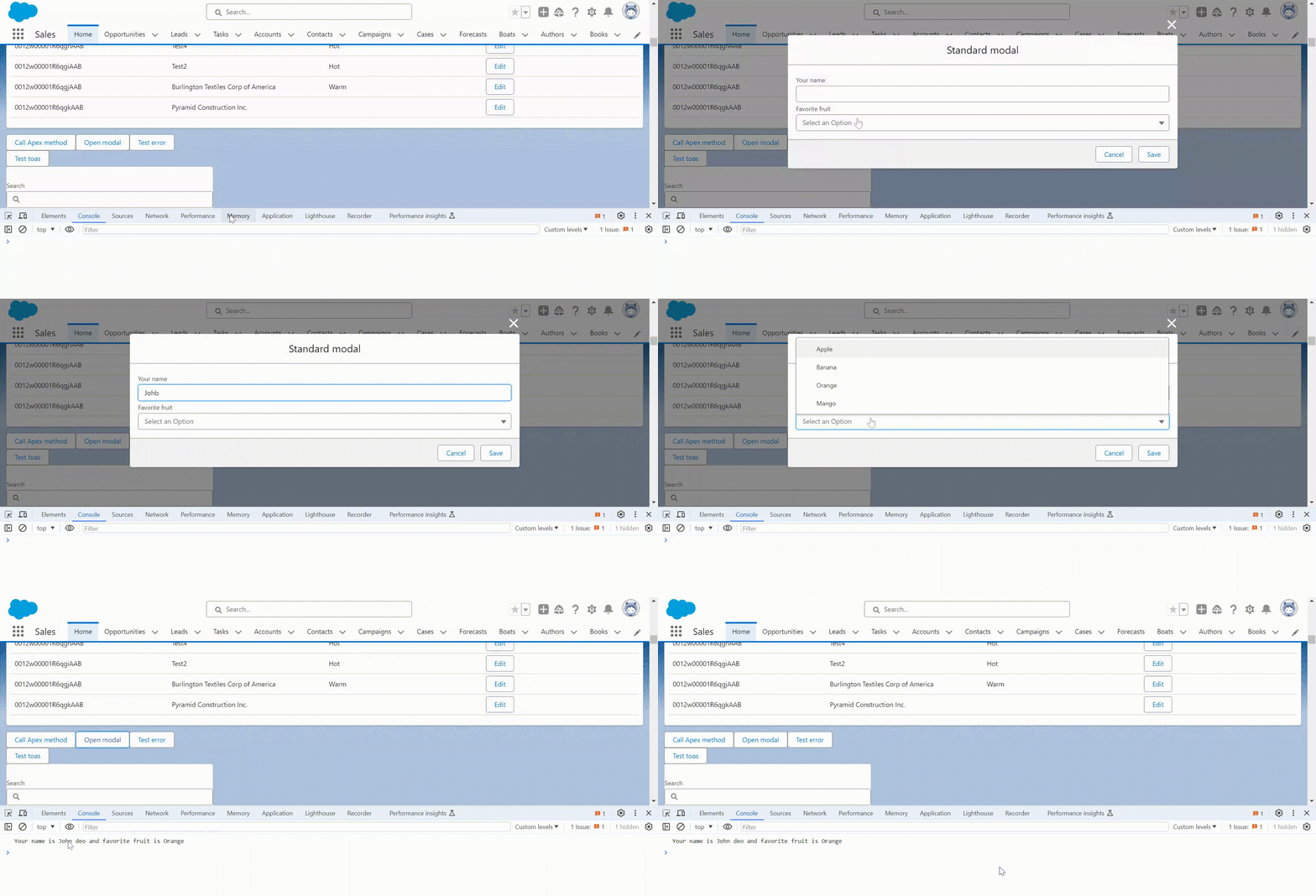
A modal is a specific type of popup that interrupts the user's workflow. It usually has a dimmed background behind it, making the main content inaccessible until the user interacts with the modal itself (e.g., by closing it or taking an action within the modal).
Salesforce provide the lightning/modal module
which does extend
the LightningModal component to create a
modal window on top of the current app window. The modal blocks
interaction with everything else on the page until the user acts
upon or dismisses the modal. This modal does
use lightning/modal and not extend the LightningElement.
This modal provide us to:
- lightning-modal-header
- lightning-modal-body
- lightning-modal-footer
To create modal box we have to need new LWC component name can be anything as you want and import LightningModal from lightning/modal. This comonent is special component which includes normal LWC resource, helper components and method and events of the lightning/modal module.
Here is quick example
myModal.html
                            <template>

                                    <lightning-modal-header label="Standard
                                Modal"></lightning-modal-header>

                                <lightning-modal-body>

                                          <p>{content}</p>

                                </lightning-modal-body>
                                <lightning-modal-footer>

                                        <lightning-button
                                class="slds-m-right_small" label="Cancel"
                                onclick={modalClose}></lightning-button>


                                        <lightning-button label="Save"
                                onclick={modalSave}></lightning-button>

                                </lightning-modal-footer>
                            </template>
myModal.js
                        import { api } from 'lwc';
                        import LightningModal from 'lightning/modal';


                        export default class MyModal extends LightningModal {
                            @api content;


                            modalSave() {
                                this.close();
                            }


                            modalClose() {
                                this.close();
                            }
                        }
In this example, the content for the modal body comes from the content property we defined it from where we will invoke the modal. Here name of property can be anything as you want.
How to open LightningModal
The lightning-modal-body component is
required for the modal template. The lightning-modal-header and
lightning-modal-footer are optional but recommended. Use the
.open() method to luanch the modal. It return promise that
resolve with user action by button click. Each open create fresh
instance. Think it of as new window. You can provide content
either through the .open() method or
define it directly in the modal's HTML.
LightningModal provides an .open() method which opens a modal and returns a promise that asynchronously resolves with the result of the user’s interaction with the modal. When you open a modal in Salesforce, it acts like a brand new mini-app. It shows whatever content you give it, either when you open it or define in the modal's code.
                                    formData = {};
                                        modalSave() {
                                              // the value of `this.formData` is passed as the result
                                              this.close(this.formData);
                                       }
                                async handleClick() {
                                        const promise = await MyModal.open({
                                           label: 'Standard modal',
                                           size: 'small',
                                           description: 'Accessible description of modal\'s purpose',
                                           content: 'Passing the content into modal'
                                        })
                                        console.log(promise);
                                }
In this example, the app opens
the myModal component. It invokes
the .open() method in
a handleClick() function bound to
the app
button’s onclick attribute,
and
uses async and await keywords
to handle the promise returned
by .open().
How to close LightningModal
                                      modalClose() {
                                        this.close();
                                      }
Data sharing
Capturing modal events requires Lightning Web Security (LWS) to be enabled in the Salesforce org.
Passing data from modal to app component.
myModal.js
                                    @api label;
                                    @api comboboxOptions;

                                    saveModal() {
                                         const save = new CustomEvent('save', {
                                            detail:this.formData
                                         })
                                         this.dispatchEvent(save);
                                         this.closeModal();
                                    }
Revcieved data from modal into app component.
myApp.js
                                        @track options=[

                                                    {label: 'Apple', value:'Apple'},


                                                    {label: 'Banana', value:'Banana'},


                                                    {label: 'Orange', value:'Orange'},


                                                    {label: 'Mango', value:'Mango'},

                                        ]
                                    handleClick() {
                                           MyModal.open({

                                                    label:
                                        'Standard modal',


                                                    size:
                                        'small',


                                        description: 'Accessible description of modal\'s
                                        purpose',


                                        comboboxOptions: this.options,


                                                    onsave:
                                        (e) => {


                                          // stop further propagation of the event


                                          e.stopPropagation();


                                          console.log(e.detail);

                                                }
                                            })
                                    }
LightningModal provides these
properties.
- label
- size
- description
- disableClose
- label - Required. Sets the modal's title and assistive device label.
-
size - Determines how much of the viewport width the modal
uses. Supported values
are
small,medium,large, andfull. - description - You can describe the modal's purpose for screen readers. This helps users understand what the modal is about.
-
disableClose - Use the
disableCloseattribute to temporarily prevent the modal from closing even with the ESC key, close button, or code (.close()). This is useful for short actions like saving a form, where you don't want the user to accidentally close the modal before it's finished.
Modal Events with LWS(Lightning Web Security) and Lightning Locker
To capture modal events, attach them in
the .open() method invoked by the
component that opens the modal. Capturing modal events
requires "Lightning Web Security" to be enabled in the
Salesforce org. Modals can't directly send events back to the
component that opened them. This is because events normally
travel up the component hierarchy, reaching a point beyond the
opening component. In simpler terms, the modal's events escape
the control of the opener.
Modal events work as expected when Lightning Web Security (LWS) is enabled within a Salesforce org, as described in the Modal Events section. If LWS isn't enabled in an org, Lightning Locker is in effect.
LWS is replacing Lightning Locker over time and is already enabled in many customer orgs. New orgs have LWS enabled by default. To enable LWS, see "Enable Lightning Web Security in an org" in the Lightning Web Components Developer Guide.
Under Lightning Locker, when you fire events
within LightningModal, the browser throws
a TypeError related
to dispatchEvent. If your modal component runs
in an org that can’t enable LWS yet, the workaround is to
wrap the code that calls dispatchEvent in
a child component that
extends LightningElement. Use the wrapper
component as a child of one of the modal components in the modal
template.
Here is complete code:
myModal.html
                                    <template>

                                            <lightning-modal-header
                                        label={label}></lightning-modal-header>

                                        <lightning-modal-body>

                                                <lightning-input
                                        label="Your name" name="input-name"
                                        value={formData.userName}
                                        onchange={handleChange}></lightning-input>


                                                <lightning-combobox
                                        label="Favorite fruit" options={comboboxOptions}
                                        name="input-option" value={formData.selectedFruit}
                                        onchange={handleChange}></lightning-combobox>


                                        </lightning-modal-body>
                                        <lightning-modal-footer>

                                                <lightning-button
                                        class="slds-m-right_small" label="Cancel"
                                        onclick={closeModal}></lightning-button>


                                                <lightning-button
                                        label="Save" onclick={saveModal}
                                        disabled={disableSave}></lightning-button>

                                        </lightning-modal-footer>
                                    </template>
myModal.js
                                            import { api, track } from 'lwc';
                                            import LightningModal from 'lightning/modal';


                                                export default class MyModal extends LightningModal {

                                                @api label;
                                                @api comboboxOptions;

                                                    @track formData = {userName:null,
                                                selectedFruit:null};


                                            handleChange(event) {


                                            if(event.target.name=='input-name'){


                                            this.formData.userName = event.target.value;

                                                }


                                            if(event.target.name=='input-option'){


                                            this.formData.selectedFruit = event.target.value;

                                                }
                                            }


                                            saveModal() {

                                                    const save = new
                                            CustomEvent('save', {


                                            detail:this.formData;

                                                })

                                                    this.dispatchEvent(save);

                                                this.closeModal();
                                            }


                                            closeModal() {
                                                this.close();
                                            }
                                        }
myModal.js-meta.xml
                                        <?xml version="1.0" encoding="UTF-8"?>

                                            <LightningComponentBundle
                                            xmlns="http://soap.sforce.com/2006/04/metadata">


                                                <apiVersion>59.0</apiVersion>


                                                <isExposed>false</isExposed>

                                        </LightningComponentBundle>
Now move to the myApp component from where we will do invoke the modal.
myApp.html
                            <template>

                                    <lightning-button onclick={handleClick}
                                aria-haspopup="dialog" label="Open
                                modal"></lightning-button>

                            </template>
myApp.js
                                import { LightningElement, api, track, wire } from 'lwc';
                                import MyModal from 'c/myModal';


                                            export default class MyApp extends LightningElement
                                            {


                                    @track options=[

                                                {label: 'Apple', value:'Apple'},


                                                {label: 'Banana', value:'Banana'},


                                                {label: 'Orange', value:'Orange'},


                                                {label: 'Mango', value:'Mango'},

                                        ]


                                                handleClick() {
                                                        MyModal.open({

                                                                label:
                                                    'Standard modal',


                                                                size: 'small',


                                                                description:
                                                    'Accessible description of modal\'s purpose',


                                                    comboboxOptions: this.options, //passing data into modal


                                                                onsave: (e)
                                                    => { //getting data from modal


                                                    // stop further propagation of the event


                                                    e.stopPropagation();


                                                    this.handleSave(e.detail);

                                                            }
                                                        })
                                                    }


                                    handleSave(detail) {

                                                    const { userName, selectedFruit
                                            } = detail;


                                                    console.log(`Your name is
                                            ${userName} and favorite fruit is ${selectedFruit}`);

                                            }
                                    }
myApp.js-meta.xml
                            <?xml version="1.0" encoding="UTF-8"?>

                                <LightningComponentBundle
                                xmlns="http://soap.sforce.com/2006/04/metadata">


                                    <apiVersion>59.0</apiVersion>


                                    <isExposed>true</isExposed>

                                <targets>


                                <target>lightning__HomePage</target>

                                </targets>
                            </LightningComponentBundle>
Conclusion
Lightning Data Modals (likely a typo, it's probably just Lightning Modal) are temporary windows that display specific content within your Salesforce app. Here's a summary of their key points:
- Fresh Start: Each time you open a modal, it creates a new instance, acting like a mini-application.
- Event Communication: Only the main component that opens the modal can directly talk to the main app using events. Events within child components of the modal are restricted.
- Event Handling: Define events you need when opening the modal. For events from child components that you want the main app to respond to, use event bubbling to pass the data to the main component and then send a new event from there.